Tutorials
Spot students about to quit
Retention & churn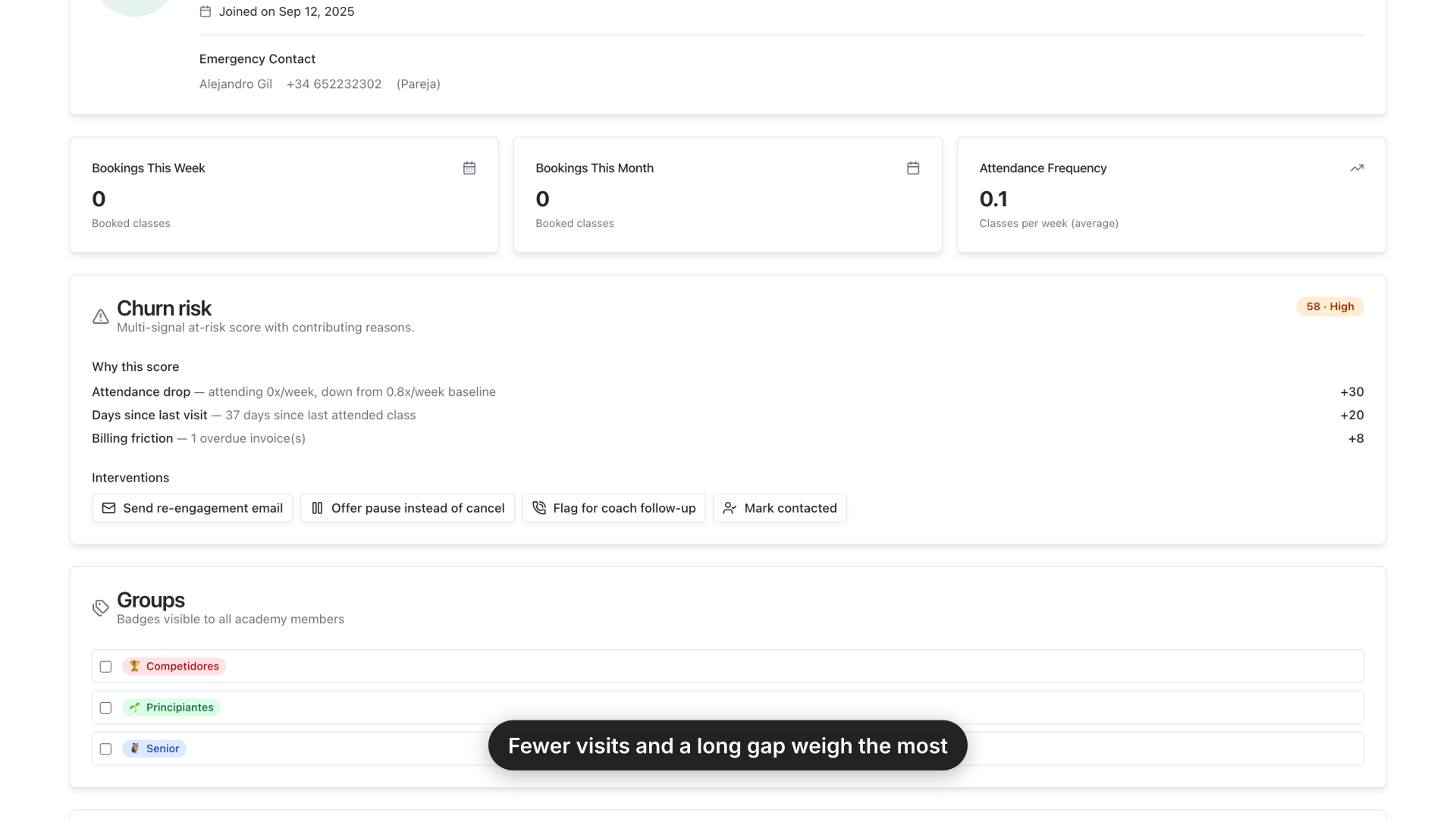
Use the weekly retention check to turn an attendance change into one owned next step. This walkthrough follows the dashboard signal to a student record and assigns a coach follow-up.
The steps
Open the dashboard’s Details & trends, review the churn-risk ranking, and inspect retention health across the academy. Then sort the student list by risk, open the student at the top, review the attendance gap and visit count, and flag a coach to follow up.
The goal is not to predict a person’s choice with certainty. It is to notice a meaningful change, check its context, and make sure a real person owns the next contact.
Step by step
- Open the dashboard
Your dashboard already counts students at risk.
- Open insights
Open Details & trends.
- Review churn risk
Churn risk ranks who is most likely to leave.
- Open retention analytics
Deep analytics shows the whole academy.
- Check retention health
Attendance drops before the cancellation — check it weekly.
- Go to students
Go to Students.
- Sort the list
Sort the list by churn risk.
- Choose the highest risk
Highest risk first.
- Open the student
Open the student at the top.
- Review the risk signals
Fewer visits and a long gap weigh the most.
- Assign follow-up
Flag the student for a coach follow-up.
- Confirm ownership
Logged: the coach owns the next contact.
Why it matters: The 3 attendance signals that predict a quit — before it happens