Tutorials
Set up your academy profile
The owner's routine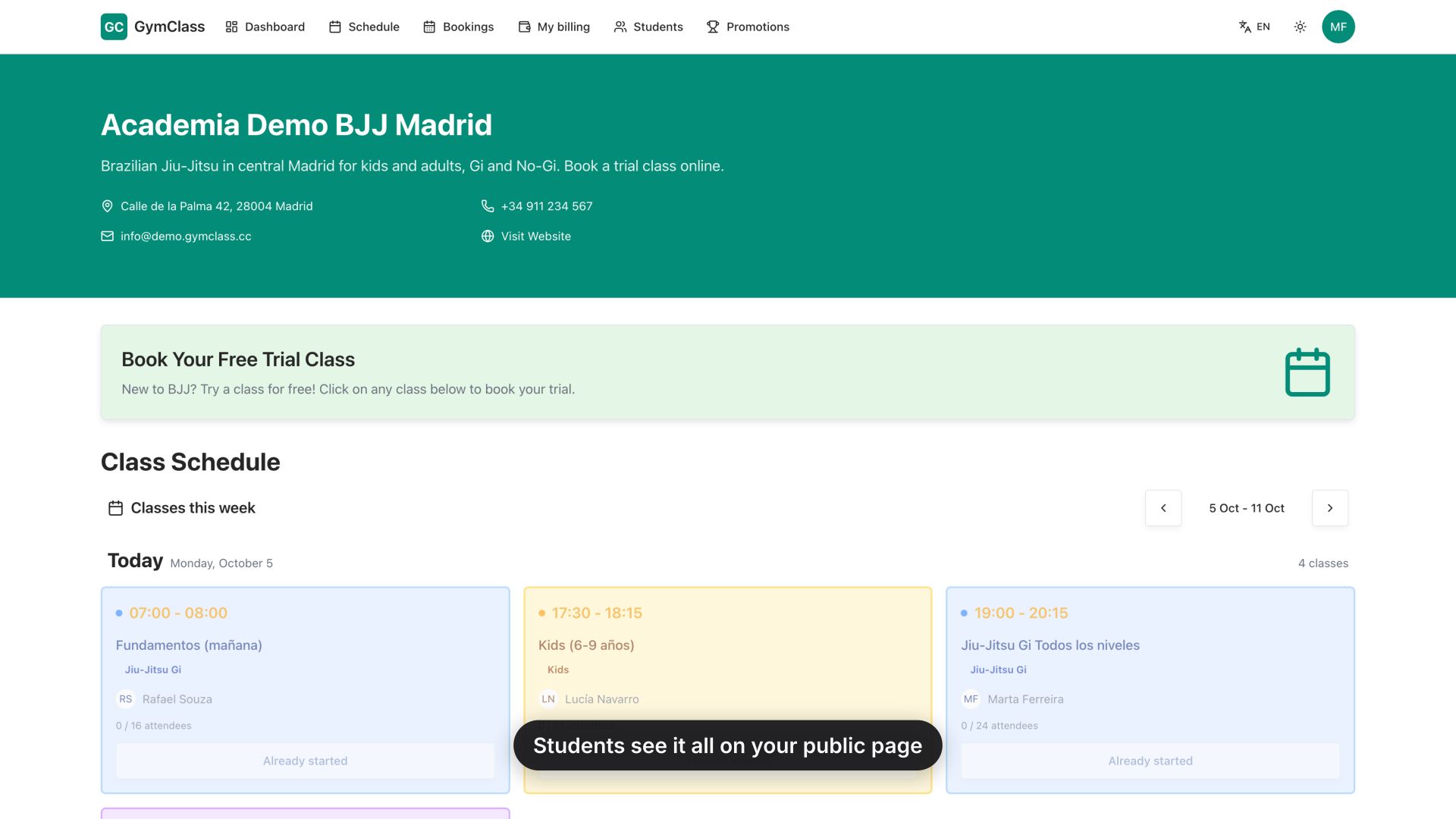
Video coming soon
The steps
This walkthrough takes you from the dashboard to Settings, where you update your academy name, public URL, description, timezone, and phone number. It ends on the public page students see.
Keep that page up to date: it is the front door students see before their first class.
Step by step
- Review the dashboard
Your profile is what students see before their first class.
- Open account menu
Open your account menu.
- Go to Settings
Go to Settings.
- Review profile details
Name, public URL and description live here.
- Edit your academy
Click Edit Academy to make changes.
- Write a short description
Describe your academy in one line.
- Open timezone settings
Set the timezone your classes run in.
- Choose the local timezone
Bookings follow your academy's local time.
- Update the phone number
Update the phone number students call.
- Save the changes
Save your changes.
- Review the public page
Students see it all on your public page.