Tutorials
Invite your students
Community & communication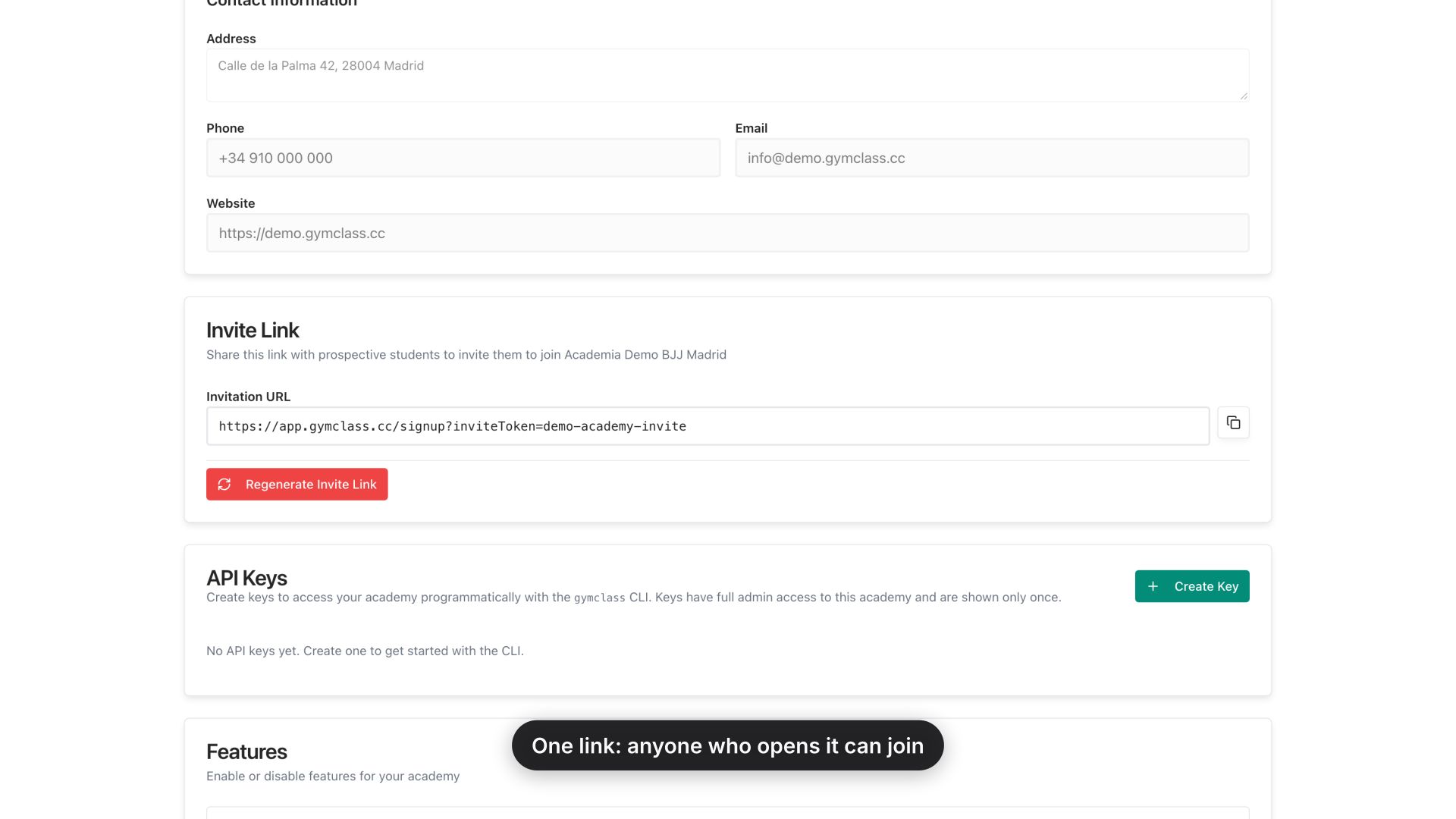
Video coming soon
The steps
The walkthrough finds the academy invite link in Settings, copies or regenerates it, then follows a student’s signup through account, profile, and belt selection. The welcome email includes links to book classes.
One invite link brings students in with their profile and belt details included.
Step by step
- Review the dashboard
Your invite link lives in Settings.
- Open account menu
Open your account menu.
- Go to Settings
Go to Settings.
- Review the invite link
One link: anyone who opens it can join.
- Copy the invite link
Copy it to share by WhatsApp or email.
- Replace a leaked link
Link leaked? Regenerate it.
- Confirm the new link
New link — the old one stops working.
- Open the academy invite
Students open it and see your academy.
- Enter your email
They create an account with their email.
- Create an account
Then they complete their profile.
- Complete profile details
Name, phone and an emergency contact.
- Choose a belt
They pick their belt.
- Save the belt
Their belt goes straight onto their profile.
- Finish the signup
Done: they land on their dashboard.
- Review the welcome email
Their welcome email, with links to book classes.